Caddy Reverse Proxy Windows: Setup and Service Guide
Deploying Caddy reverse proxy on Windows provides automatic TLS certificate provisioning and reverse routing for local backend applications. To run Caddy reliably in production, install the native 64-bit binary. Configure your Caddyfile rules carefully. Then open inbound firewall ports 80 and 443 with netsh. Finally, register the background service using NSSM.
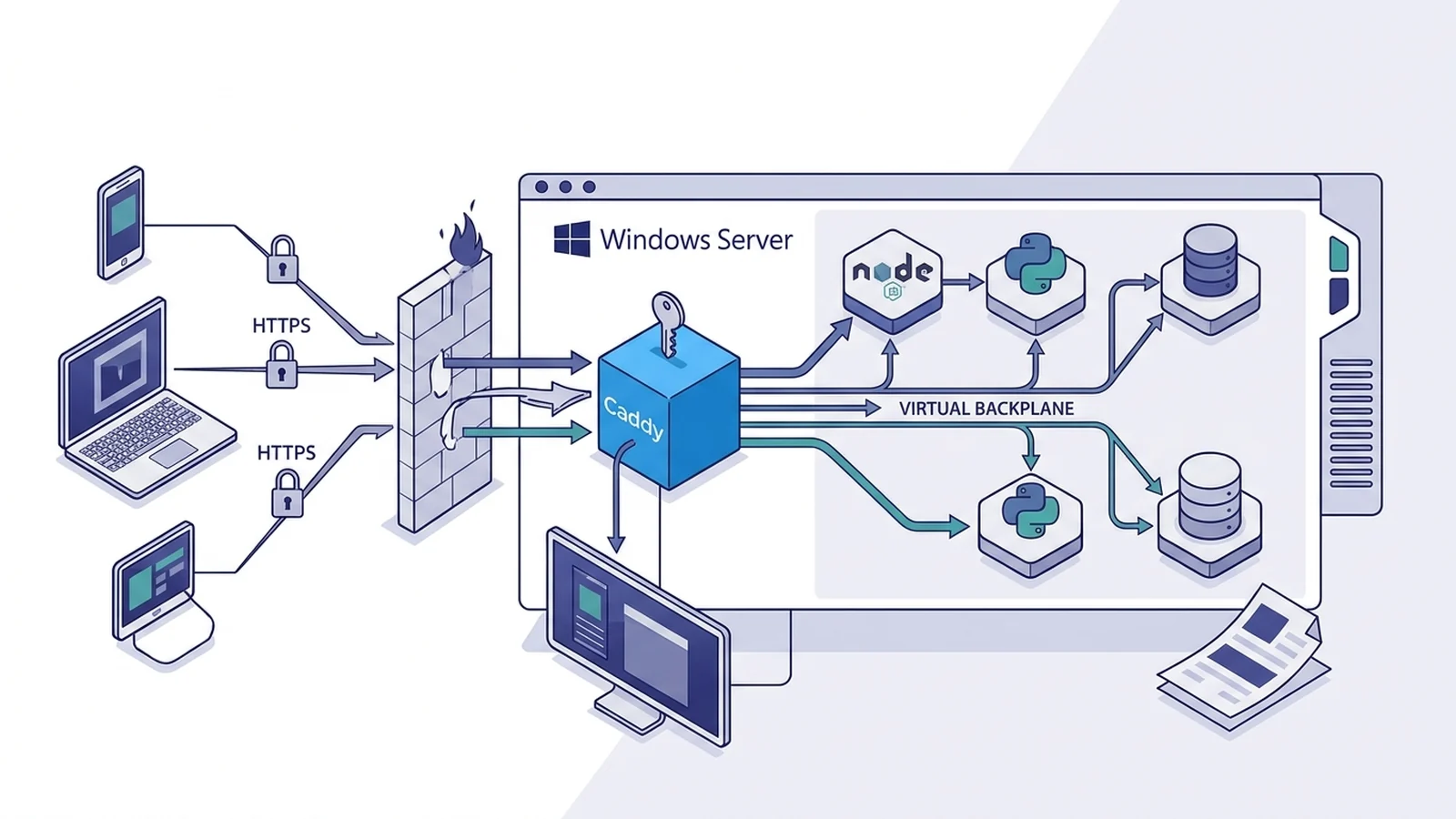
Why run Caddy reverse proxy on Windows?
Windows Server hosts internal applications that can be proxied to local ports using Caddy without IIS or ARR dependencies. It saves time. The Go server replaces bulky tools. It provisions and renews TLS certificates automatically. The Caddyfile format keeps routing definitions clear and compact.
The proxy forwards traffic to local ports like 3000 or 8080. It secures links with HTTPS. Read our notes on caddy reverse proxy docker compose to compare host setups with Docker apps. Running directly on the local host routes traffic directly to local application ports without container virtualization. Local ports respond fast. It cuts network lag while keeping your host setup lean.
Installing Caddy on Windows Server and Windows 11
Caddy distributes native 64-bit Windows executables that run directly without external runtime dependencies like IIS or .NET. Place files in a folder like C:\edge. Use an admin shell. Pick a package manager.
# Install via Windows Package Manager
winget install --id CaddyServer.Caddy -e

# Or install via Chocolatey
choco install caddy

# Or install via Scoop
scoop install caddy
If you prefer manual installation, download the official zip archive from GitHub and extract the executable file directly into C:\edge. Run the version command in PowerShell to confirm that the binary works.
caddy versionThe console prints the release tag to confirm that the binary runs properly. You can now build your rules.
Configuring the reverse proxy Caddyfile
The Caddyfile format defines HTTP listeners and upstream proxy targets using plain text directives. Put the file inside C:\edge. A simple rule maps a domain name to a local port.
app.example.com {
    reverse_proxy localhost:8080
}
The server requests a TLS cert right away. It sets up port 80 redirects. Then it passes incoming traffic to your app on port 8080. If your app handles real-time streams, read our walkthrough on caddy reverse proxy websocket. Real-time data streams flow without extra tuning. The underlying reverse proxy engine transparently handles WebSocket upgrades and client header forwarding by default.
Production setups need extra care. You can configure detailed access logs to monitor incoming traffic. Path filters help organize routes.
# Production Windows configuration
{
    admin localhost:2019
    email admin@example.com
}

portal.example.com {
    encode zstd gzip

    reverse_proxy 127.0.0.1:3000 {
        header_up Host {upstream_hostport}
        header_up X-Real-IP {remote_host}
    }

    log {
        output file C:/edge/logs/portal.log {
            roll_size 10MiB
            roll_keep 5
        }
        format json
    }
}

api.example.com {
    encode gzip
    reverse_proxy 127.0.0.1:5000
}
Forward slashes and Windows backslashes can both be used when specifying file and log paths in the Caddyfile. For subpath routing, see our guide on caddy reverse proxy subpath. Subpath rules map distinct backends under one domain. They keep routing clean.
Opening inbound ports in Windows Defender Firewall
Inbound TCP ports 80 and 443 must be explicitly allowed through Windows Defender Firewall to permit incoming web traffic to reach the Caddy listener. By default, Caddy automatically provisions and renews TLS certificates and redirects HTTP port 80 traffic to HTTPS port 443.
Run these commands in an admin prompt. They open web ports.
# Allow inbound HTTP on port 80
netsh advfirewall firewall add rule name="Web Proxy HTTP" dir=in action=allow protocol=TCP localport=80

# Allow inbound HTTPS on port 443
netsh advfirewall firewall add rule name="Web Proxy HTTPS" dir=in action=allow protocol=TCP localport=443
Windows Defender Firewall rules applied via netsh take effect immediately without requiring a system restart. External clients can now reach your edge server directly. Public network routes stay open. To compare speeds with older tools, read our benchmark on caddy vs haproxy. Both tools offer great speed. Test both on your hardware to pick the one that fits.
Running Caddy as a Windows Service with NSSM
Windows does not natively support running arbitrary console executables as background Windows Services without a service wrapper such as NSSM or WinSW. Running Caddy with NSSM allows configuring automatic service startup, working directory parameters, and redirected log files.
| Deployment Method | Survives Logout | Auto-Restarts | Operational Overhead | Recommended Environment |
|---|---|---|---|---|
| Interactive Terminal | No | No | Minimal | Local development and debugging |
| NSSM Service Wrapper | Yes | Yes | Negligible wrapper overhead | Standard Windows Server production |
| Task Scheduler | Yes | Partial | Minimal | Basic workstation tasks |
| WinSW Wrapper | Yes | Yes | Low footprint wrapper | Enterprise automation workflows |
Step-by-step NSSM service installation
Follow these five setup commands to run the server in the background.
- Put
nssm.exeintoC:\edge. - Install the service executable with NSSM using elevated admin rights.
- Set the startup folder path.
- Redirect standard output and error streams into the log folder.
- Set service start to auto and boot it.
# NSSM service configuration
C:\edge\nssm.exe install gateway-service C:\edge\caddy.exe "run --config C:\edge\Caddyfile"
C:\edge\nssm.exe set gateway-service AppDirectory C:\edge
C:\edge\nssm.exe set gateway-service AppStdout C:\edge\logs\service.log
C:\edge\nssm.exe set gateway-service AppStderr C:\edge\logs\service-err.log
C:\edge\nssm.exe set gateway-service Start SERVICE_AUTO_START
Start-Service gateway-service
Inspect the background service status in PowerShell to confirm that it runs. The state reports running.
Get-Service gateway-serviceZero-downtime configuration reloads on Windows
Executing caddy reload validates the updated configuration and swaps memory state via the admin endpoint without dropping active client connections. Edit your Caddyfile when routes change. Then apply the changes.
caddy reload --config C:\edge\CaddyfileThe reload call sends the new rules to the admin API. It checks syntax first to ensure that directives are valid. Clean files update runtime memory. Broken files leave current routes running. Live sites stay online.
Troubleshooting common Windows proxy errors
Host setups can hit a few common hurdles.
- Port Conflicts: Port binding conflicts on port 80 or 443 can be diagnosed on Windows using netstat and resolved by stopping competing services. Inspect listeners with
netstat -ano | findstr :80. - Directory Permissions: Dedicated service accounts require read and write access to log folders. Grant rights over
C:\edgeand log paths. Verify write permissions. - Backend Offline: If errors appear, check your application process. Make sure your local upstream service is running and answering requests. Test the target port with curl or PowerShell.
Frequently asked questions
Can Caddy run natively on Windows without IIS?
Yes. The proxy compiles directly to a native 64-bit binary. It runs independently without IIS or .NET runtime dependencies.
Why does Caddy stop when logging out of Windows?
Console processes bind to your interactive session. Windows closes that desktop session on logout. Running the process as a Windows service prevents shutdowns.
How do you reload configuration on Windows without restarting the service?
Run caddy reload --config C:\edge\Caddyfile in PowerShell. It refreshes memory state without dropping traffic.