- Use one clean browser profile for sensitive work such as identity administration, finance and HR. Keep normal browsing in a different profile.
- Give the admin profile a small approved extension list, a short bookmark list and a named owner. Turn on browser updates and strong sign-in protection.
- A separate profile is a useful boundary, not a security guarantee. It does not replace device security, access control or good recovery plans.
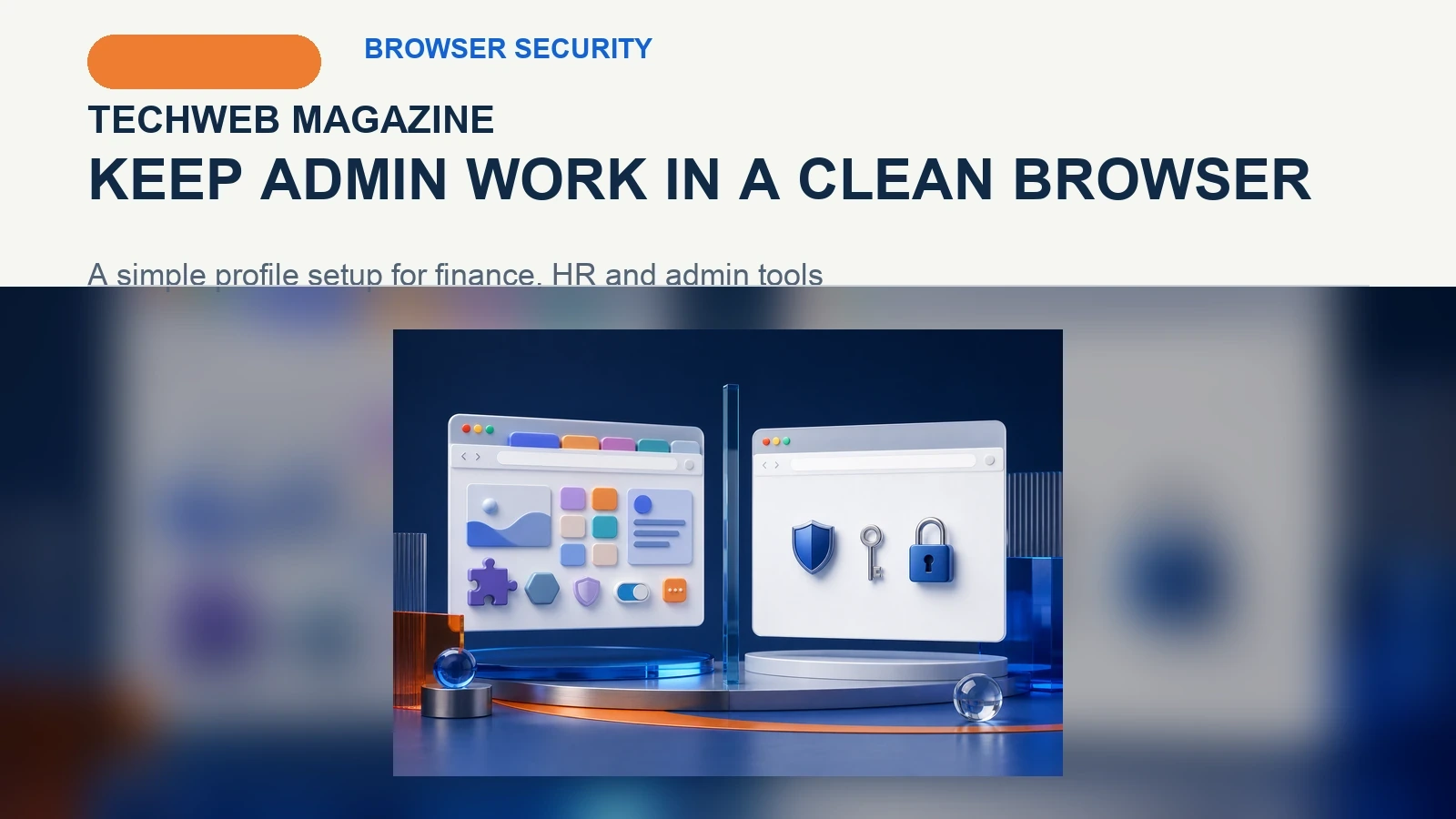
Most work happens in a browser. That makes the browser easy to overlook. A person may use the same window for a payroll dashboard, a supplier invoice, a news story and a quick extension test. Those jobs do not carry the same risk.
A separate browser profile is a simple way to draw a line. A profile keeps its own sign-ins, history, bookmarks, extensions and settings. It is not a new employee account. It is a separate workspace inside the browser.
Make one profile the quiet place for high-impact work. Use it for identity administration, finance, HR, domain settings and other tools that can change access or move money. Keep routine research, social sites and experiments in a normal profile.
Why the browser deserves an access boundary
Browsers hold active sessions. A session is the proof that a site has already signed you in. They also run extensions. An extension can add useful features, but it may be able to read or change data on sites you visit. The UK National Cyber Security Centre says extensions can increase the browser attack surface and should be managed with a clear policy.
This does not mean every extension is unsafe. It means sensitive work should have fewer moving parts. A clean profile makes that choice visible. It also makes it easier to see what belongs in an admin session and what does not.
The idea is close to least privilege. Least privilege means giving a person or system only the access needed for a job. Here, the job gets a smaller browser workspace as well as a narrower account role.
Choose the work that belongs in the clean profile
Start with tasks that can change a company account or expose valuable data. Do not try to split every browser task on day one. Pick the few services where a mistake would be hard to undo.
| Use a normal profile for | Use a clean admin profile for |
|---|---|
| Research, reading, routine collaboration and approved daily tools | Identity provider, payroll, banking, tax, HR and domain administration |
| Testing a new extension or web tool | Changing user roles, recovery settings or payment details |
| General web searches and product trials | Access reviews, high-value vendor portals and security dashboards |
There will be grey areas. The point is not a perfect rulebook. The point is a clear default: do ordinary browsing elsewhere when an admin session is open.
Set it up in four small steps
1. Create and name the profile. Make a new browser profile with a plain name such as “Admin work.” Sign in only with the work identity needed for that role. Do not add a personal account for convenience. If your company manages browsers, ask the IT team to create or manage the profile through its normal tools.
2. Start with no extensions. Add an extension only when there is a clear work reason. A password manager may be needed. A screenshot tool or AI helper may not be. Write down the approved list and review it when the job changes. NCSC guidance recommends a policy for browser extensions and keeping browsers and extensions updated.
3. Keep bookmarks short. Add the approved admin portals, support contacts and recovery pages. Avoid a long bookmark bar full of unrelated links. A short list helps people spot the right destination before they sign in.
4. Protect the sign-in. Use the strongest sign-in method the service supports. Keep multi-factor authentication active. Check that another trusted person can recover the account under your normal process. Our passkey readiness checklist can help when you are assessing sign-in and recovery options.
Keep the profile boring on purpose
The admin profile should not be a second copy of your whole browser. Do not use it for casual searches, online shopping or a trial extension. Do not open a link from an unexpected email there. If you need to investigate a strange page, use the normal profile or a safe test process first.
This habit lowers clutter. It also reduces the chance that a rushed click happens in the same session as a powerful admin tool. The result is easier to explain to a new team member: this browser profile is for changing company accounts, not for general web work.
If an AI tool works through the browser, treat it with the same care. Do not place a new assistant or automation in a profile used for sensitive administration until its access and purpose are clear. Our guide to piloting an AI agent without too much access explains how to begin with a small, supervised job.
Make ownership and review explicit
Someone should own the setup. That person does not need to inspect every page people open. They should know which profiles exist, which services they hold and which extensions are allowed. Add the profile to the same access review rhythm used for important SaaS tools.
During a short review, ask three questions. Does this profile still need each admin service? Are the extensions still needed? Can the right people sign in and recover access if the current owner is away? Record the answers with your normal access notes.
This pairs well with an account review. A separate profile does not decide who should have admin rights. It gives those rights a more controlled place to be used. For service accounts and agents, use the same principle of clear ownership and narrow access in our AI agent access review guide.
Know what a browser profile cannot do
A clean profile is not a security boundary like a separate managed device. It cannot fix a compromised computer. It does not remove risky permissions from an account. It does not make a weak password safe. It also cannot replace patching, device protection, logs or a careful approval process.
That limit matters. Treat the profile as one practical layer. Use it alongside strong authentication, limited admin roles, current browser updates and a way to remove access quickly. The aim is better habits and fewer accidental overlaps, not a promise of perfect isolation.
Try a one-week rollout
Begin with one or two people who administer the most sensitive services. Create the profile, add only the essential sites and test the usual tasks. Check recovery while the right staff are available. Then write a short rule that says when the profile should be used.
After a week, ask what caused friction. You may need one approved extension or a clearer bookmark. You may find that one tool belongs in a lower-risk process. Keep the changes small and documented. A usable routine is more valuable than a large policy that nobody follows.
Start small. Test one task. Keep notes. Fix the rough spots. Do not rush the next step. Make the new habit easy to keep. One clear rule can help. A short list is fine. Ask for help when stuck. Keep the first week calm.
Admin work needs focused attention. A separate profile supports that focus with a small change people can see every day. Keep it clean, keep it updated and keep its purpose narrow.
Sources and further reading
Frequently asked questions
Is a browser profile the same as a separate computer account?
No. A browser profile separates browser data such as sessions, extensions and bookmarks. It is useful for focus and control, but it is not the same as a separate device or operating-system account.
Which extensions should be allowed in an admin profile?
Start with none. Add only extensions needed for the job, such as an approved password manager. Keep a short approved list and review it when the work changes.
Should everyone have an admin browser profile?
Start with people who manage sensitive services or high-impact settings. Expand only where the profile has a clear purpose and a team can support the habit.